Terminal workspace
Run multiple terminal sessions safely
Keep independent shells and installed agents available in tabs and splits, while p-track persists only bounded layout descriptors—not terminal contents or runtime authority.
Sessions and tabs
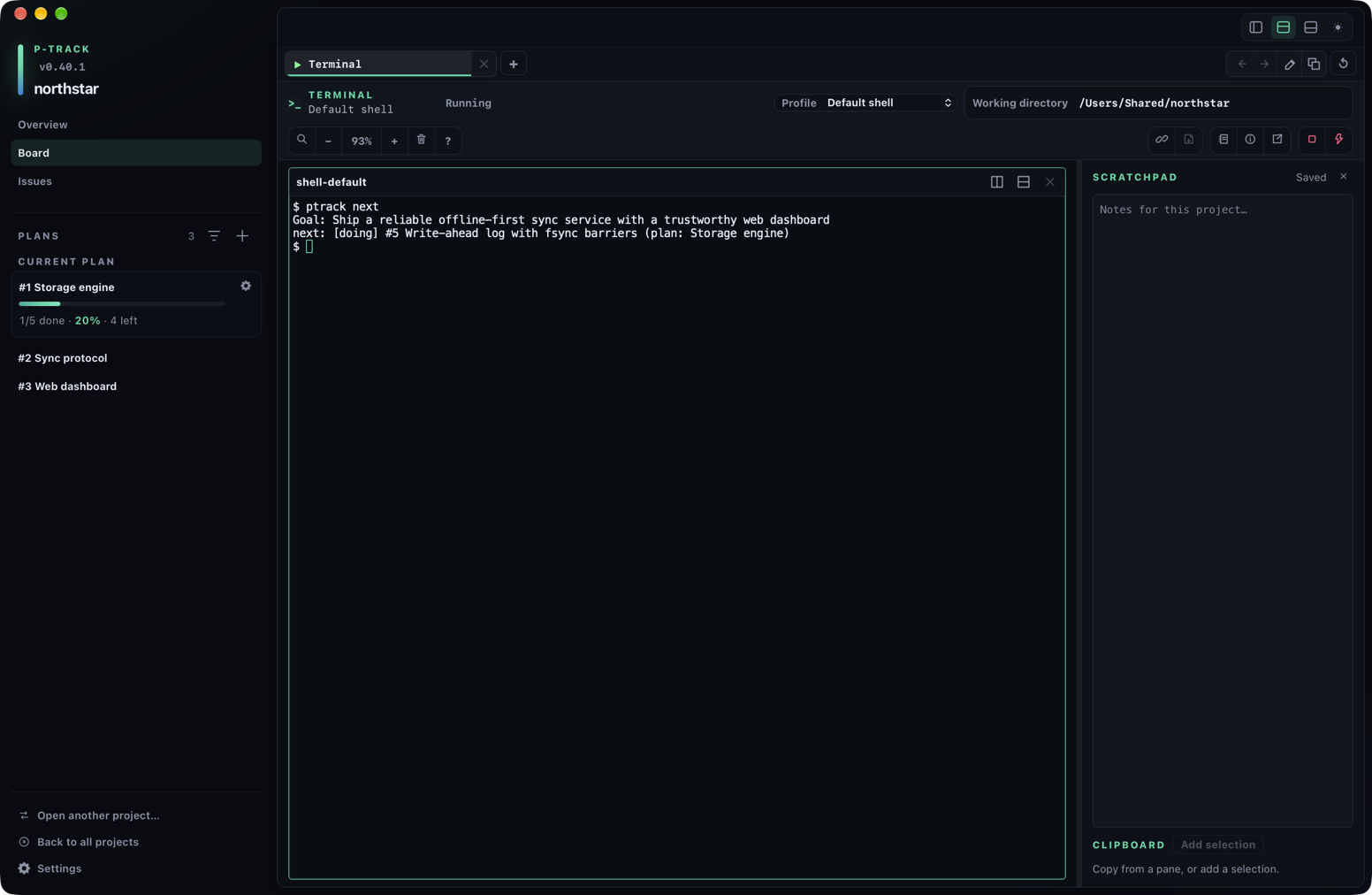
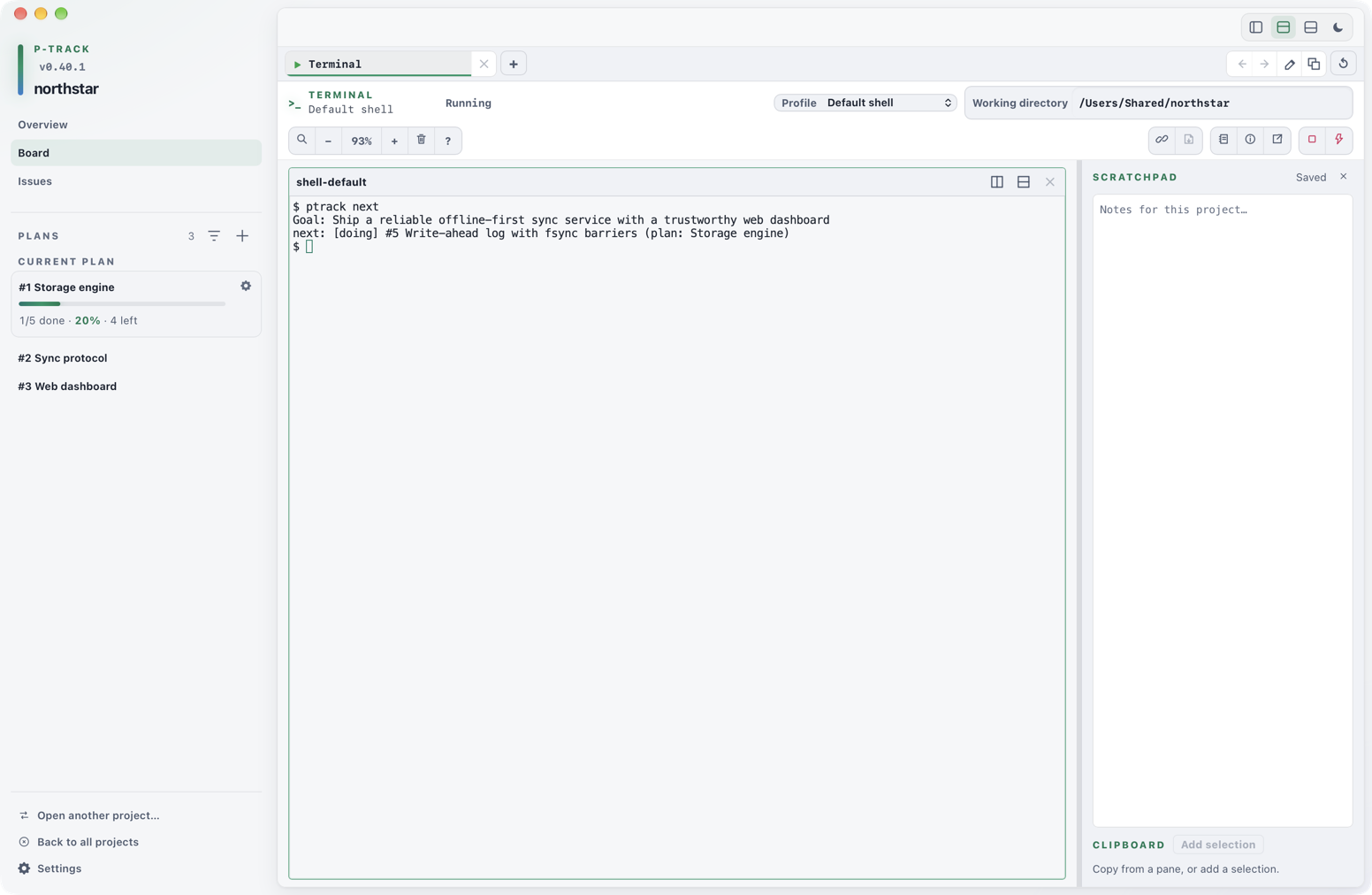
Controls follow their scope: the tab row manages tabs; each pane header splits or closes that pane; the terminal toolbar groups output tools, project context, utilities, and session controls. Every icon-only control has a name and a tooltip describing its action.
Open the terminal dock from a project workspace, or toggle it with Cmd+J or Ctrl+J from any view. Choose a profile and working directory, then start the stopped pane: a stopped pane says No shell is running in this tab. and offers a Start shell button. Hover or leave the working directory field to see the full path. Each pane receives its own PTY-backed session. Closing a pane stops its owned process; an exited pane remains visible when its profile uses the keep exit behavior.
Use + beside the tabs to create a tab and × on a tab to close it. Reorder, duplicate, and rename actions on the right apply to the selected tab. Closing a tab with live sessions asks for confirmation; the last tab stays available. Use the square Stop session control to stop its process while keeping the tab. Keyboard users can focus a tab and press F2 to begin renaming, Enter to save a non-empty name, or Escape to cancel. Arrow keys move focus between tabs; Home and End reach the first and last tab.
Persistence is intentionally content-free. p-track stores tab titles, active panes, split layout, profile IDs, requested working directories, and bounded plan/task pointers. It never persists terminal output, scrollback contents, session IDs, stream URLs, tokens, environment values, or other runtime authority.
After an app restart or project reopen, saved descriptors return as stopped panes. Opening one creates a fresh session; it does not restore the prior shell process or terminal contents.
Detached terminals. Use Pop out terminal to move the current tab into its own window. Its compact header provides tabs, a color-theme toggle, search, font-size controls, and clear scrollback. The terminal follows window resizing. New tabs created here open shell sessions. Every tab, the original included, closes with × while the window holds more than one; closing a live shell asks first, and the last tab stays for the window's own close. A shell that ends in the detached window releases its place in the main window, where the pane shows the exit and can be restarted. Closing the detached window returns its tabs to the main window, as the tooltip says: the original tab goes back to its place, and every tab created in the window comes back as a new tab in the dock with its session still running. Tabs whose shells already ended are closed rather than returned. Only when the dock has no room for another tab does a returned session close, and p-track says so.
Below its header, the detached window shows the same facts as the dock's toolbar for the active tab, on one line at any window size: the shell state (for example Prompt · last 0 or Command running), the profile, and the working directory, shortened from its start with the full path in its tooltip. A tab linked to a plan or task shows a Linked · plan #N · task #M badge; relinking and Write memory back stay in the main window. The ⓘ control opens the same content-free diagnostics as the dock and closes with its ×, Escape, or a click anywhere else. The notebook control opens the project's scratchpad beside the panes, described below: copies from the window's panes reach its clipboard strip, and the note is the same one the dock shows.
Shell prompt symbols use a bundled Nerd Font fallback, so no system font installation is needed.
Splits and limits
Split the active pane horizontally or vertically and resize a split with its separator. p-track clamps split ratios from 0.1 through 0.9, so neither side can consume the entire split.
| Workspace bound | Limit |
|---|---|
| Tabs per project workspace | 12 |
| Terminal panes per tab | 8 |
| Nested pane depth | 6 |
| Split ratio | 0.1–0.9 |
Controls stop offering additions at these limits. If saved layout data is malformed or outside its bounds, p-track discards it instead of turning it into a live session.
Search, copy, paste, and zoom
Search the active pane's scrollback, move through matches, and close search without stopping the session. Copy uses the native clipboard. A selection-aware Ctrl+C copies when text is selected; without a selection it remains terminal interrupt input.
| Action | macOS | Windows and Linux implementation |
|---|---|---|
| Search output | ⌘+F | Ctrl+Shift+F |
| Copy selection | ⌘+C | Ctrl+Shift+C |
| Paste | ⌘+V | Ctrl+V or Shift+Insert |
| Select all | ⌘+A | Ctrl+Shift+A |
| Zoom in, out, reset | ⌘ with +, −, 0 | Ctrl with +, −, 0 |
| Open context menu | Menu or Shift+F10; right-click also opens it | |
The context menu exposes copy, paste, select all, output search, clear buffer, and terminal-state reset. Toolbar controls offer the same search and zoom behaviors without requiring shortcuts.
Scratchpad. The notebook control in the toolbar utilities opens a per-project scratchpad beside the panes. Its note is plain text you type yourself; p-track saves it with the project and brings it back after a restart. Below the note, the clipboard strip keeps what you copy out of a pane—nothing else—as re-usable snippets you can copy again, paste back through the usual paste review, pin, or delete. Snippets are capped at 4 096 bytes each and 50 entries; adding past the cap drops the oldest unpinned snippet. Every copy is screened before it is saved: a copy that looks like a credential, such as a private key, an access token, or a password= assignment, is not kept, and the strip shows Not saved: looks like a secret instead. The note is limited to 64 KiB of UTF-8 text; the status line counts the bytes left and refuses to save a note that is too long. Drag or arrow-key the separator to resize the panel, and use the toolbar control again to hide it.
The dock and every detached terminal window show the same project scratchpad. A note saved in one appears in the other within a couple of seconds. While you are still typing in one of them, an edit arriving from the other does not replace your text; if both were changed, the later save is refused, the stored note is shown, and your text is put on the clipboard with the notice Changed elsewhere and reloaded; your text is on the clipboard. Each window remembers on its own whether its panel is open.
Review multiline paste
Pasting text that contains a newline opens a bounded review dialog. Inspect the normalized preview and line count, then confirm or cancel. Cancel sends nothing. Confirm delegates the complete text to xterm's paste behavior, including bracketed paste when the running program enables it.
Before any paste, p-track removes control characters other than tab and newline, and every bracketed-paste start or end marker, so copied text cannot end the bracket early or smuggle keystrokes into the shell. When anything was removed, the paste always goes through the review dialog, which reports how many control characters it dropped.
Only a running full-screen program skips the review. A multi-line paste goes straight to the terminal only when the alternate screen is active and rich shell integration reports that a command is running, which is the case for an editor or other full-screen program started from the shell. Output that merely switches to the alternate screen, such as a file printed with cat, no longer disables the review. Review clipboard content before pasting into a full-screen program.
Profiles and exit behavior
The default profile uses 25,000 lines of scrollback. A version-1 profile configuration can select a requested, project-root, or fixed working-directory policy; choose a theme and font family; set non-secret environment overrides; and set an exit behavior.
- Font size is bounded from 10 through 24 pixels. Toolbar zoom is remembered per profile.
- Scrollback is bounded from 100 through 100,000 lines.
keepleaves an exited pane visible;close-on-successcloses only after a successful exit;closecloses after any exit.- Automatic process restart is not an exit policy. Starting again always creates fresh runtime authority.
Settings ▸ Terminal holds the application-wide defaults used when you open a new pane: default profile, font family, font size (10–24 pixels), Unicode mode, scrollback (1,000–200,000 lines), and renderer. Unicode mode is the one control for grapheme and emoji cell widths and applies to open panes immediately; the dock toolbar no longer has its own Unicode checkbox. Other changes apply to panes opened afterward; running sessions and their per-pane zoom keep their current values, and a session already bound to a profile is untouched. A stored default profile that no longer resolves is reported as unavailable rather than silently replaced.
Profile files must not be used as credential stores. p-track rejects credential-like and reserved environment names; keep credentials in the launched tool's native credential store.
Associations and write-back
Copy context on the board or a task copies the project path, plan and task references, and commands to read their current p-track records. The copy icon beside the project name copies project context alone. Paste the result into your agent when you are ready.
Link terminal context associates the active tab with a plan or task after host validation. The pointer helps p-track correlate the terminal with project work; it does not grant any authority or capture terminal contents.
Write memory back is available only for an associated live session. You enter the bounded summary, decision, blocker, or handoff yourself, preview its authoritative destination, and then save it. p-track does not extract text from terminal output.
Diagnostics and recovery
Exited sessions show their status. For an ordinary shell pane, Restart terminal closes the failed or exited session before opening a fresh one. A linked-agent pane cannot use ordinary restart: launch that agent again from its associated plan or task so p-track can mint and bind fresh authority.
Diagnostics are content-free. They report only process, stream, renderer, layout, update time, and bounded retry or repair counts. They never include terminal output, commands, clipboard text, environment values, credentials, or stream URLs.
- Retry terminal renderer rebuilds the selected visible renderer without restarting its PTY. WebGL recovery is bounded and falls back to the built-in renderer.
- Force stop terminal requires confirmation and targets only the selected current session.
- Reset terminal workspace replaces the project's saved terminal layout. Confirming it terminates every live session represented by that workspace before creating a fresh stopped layout.
- Settings ▸ Data & Diagnostics ▸ Reset Application State discards the saved terminal workspaces of every project, not just the current one, along with other application state.
Platform qualification: clipboard, shortcuts, context menus, restart, and shutdown interactions have been verified end to end on macOS. Windows and Linux include native implementations, but this Help Center does not claim those interactive paths as verified passes.