One project control view
See plans, agents, and repository signals together
p-track Desktop puts durable project status beside registered agent activity, bounded repository evidence, and terminals. Board, Overview, and Issues are separate views of the same local project record.
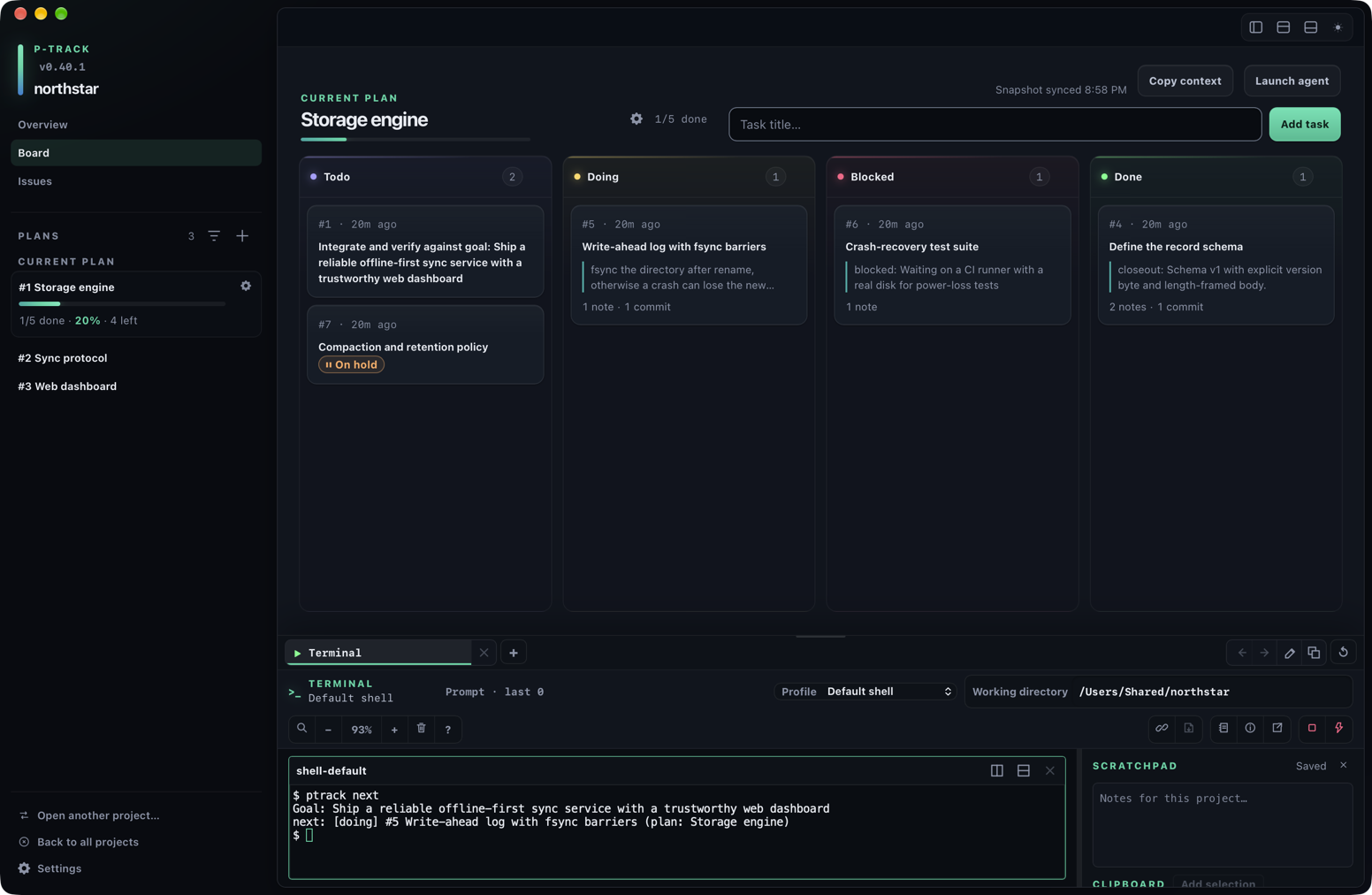
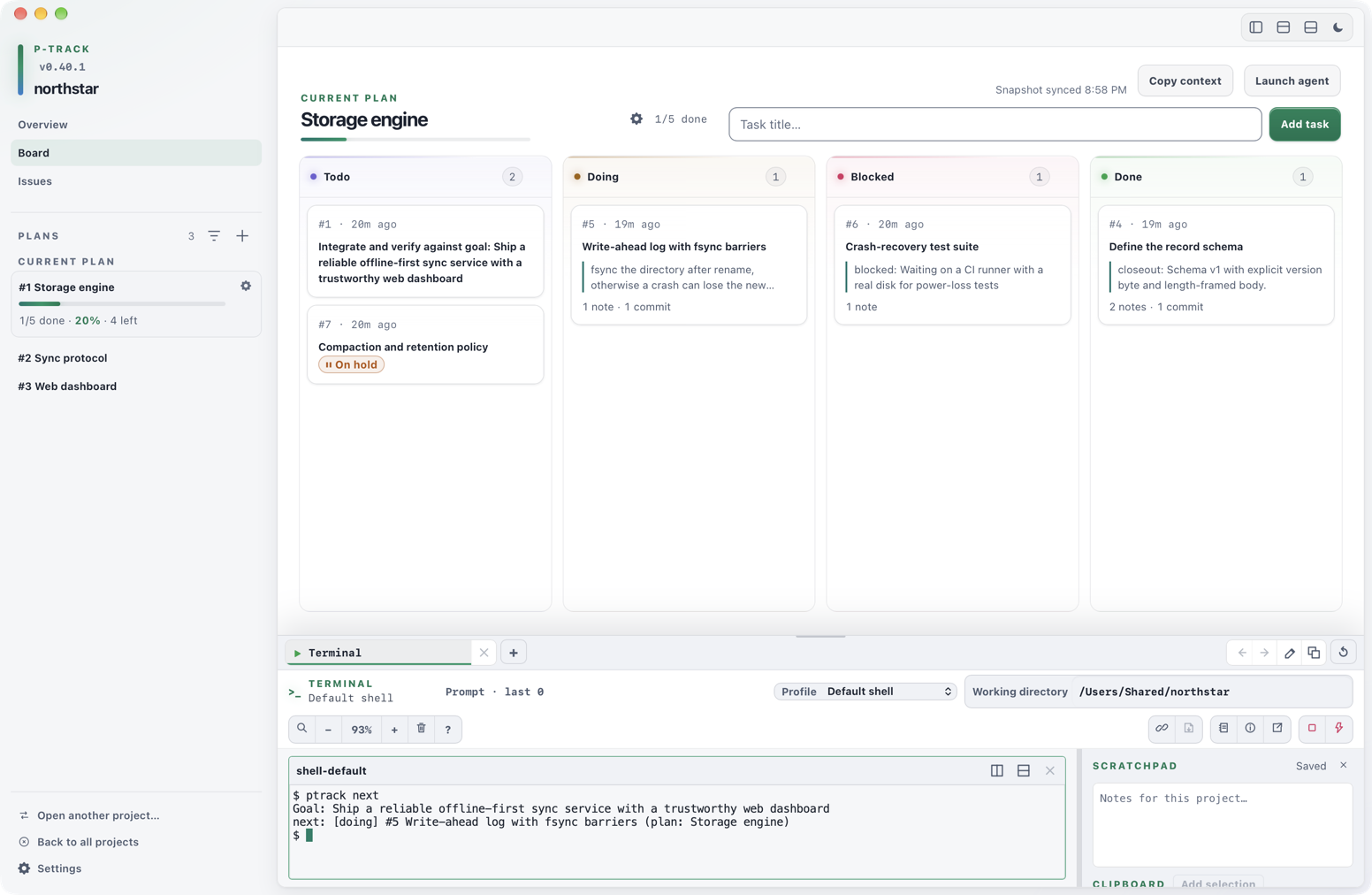
There is one current plan. The plan pinned at the top of the sidebar is always the plan the Board shows. Choosing another plan in the list makes it your current plan, exactly as ptrack plan use <id> does, so the CLI, ptrack next, and agents follow the same plan. The same rules apply: a plan claimed by someone else is refused until it is released or taken over, and a done or archived plan cannot become current.
Open, switch, or close a project
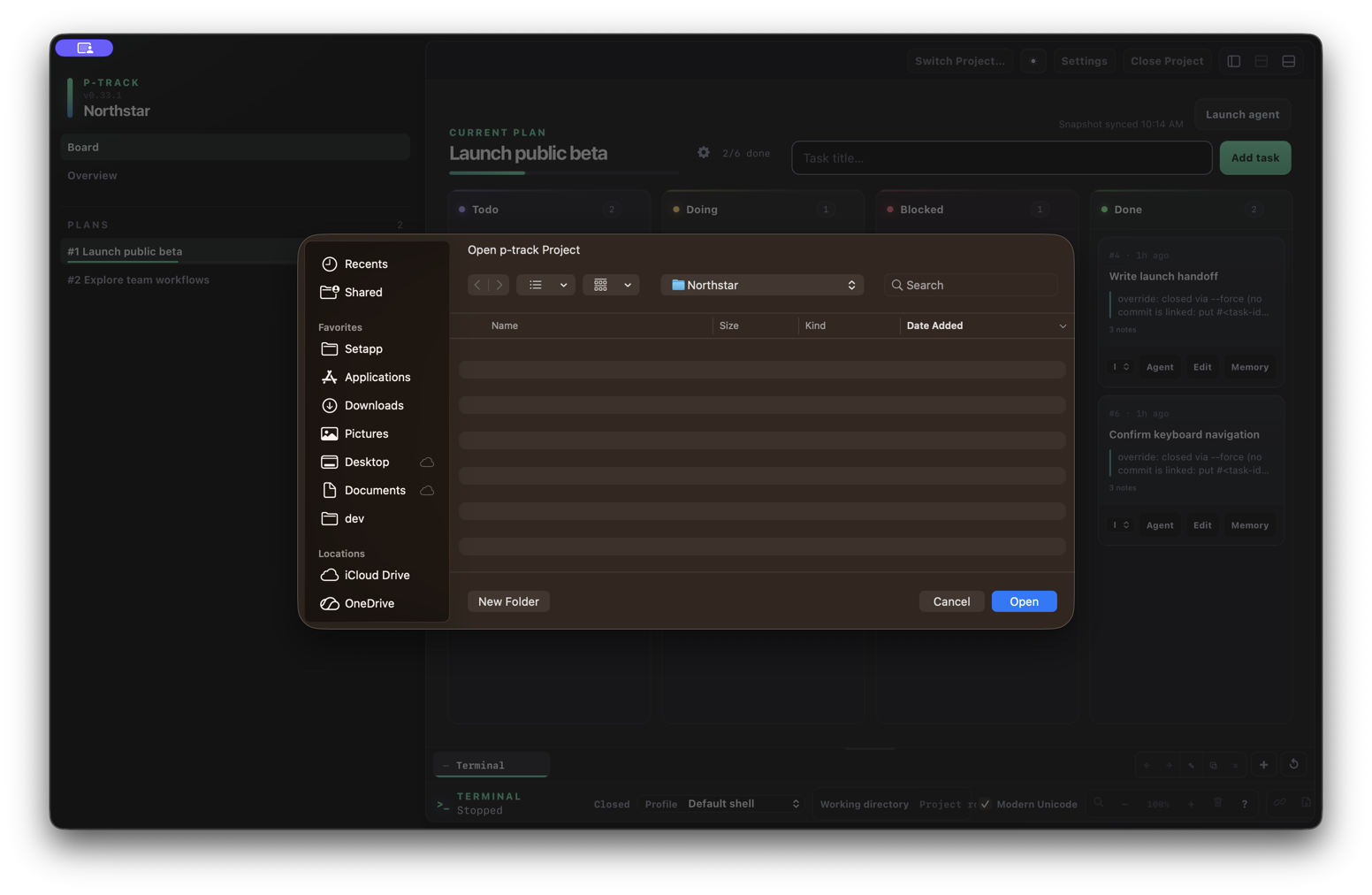
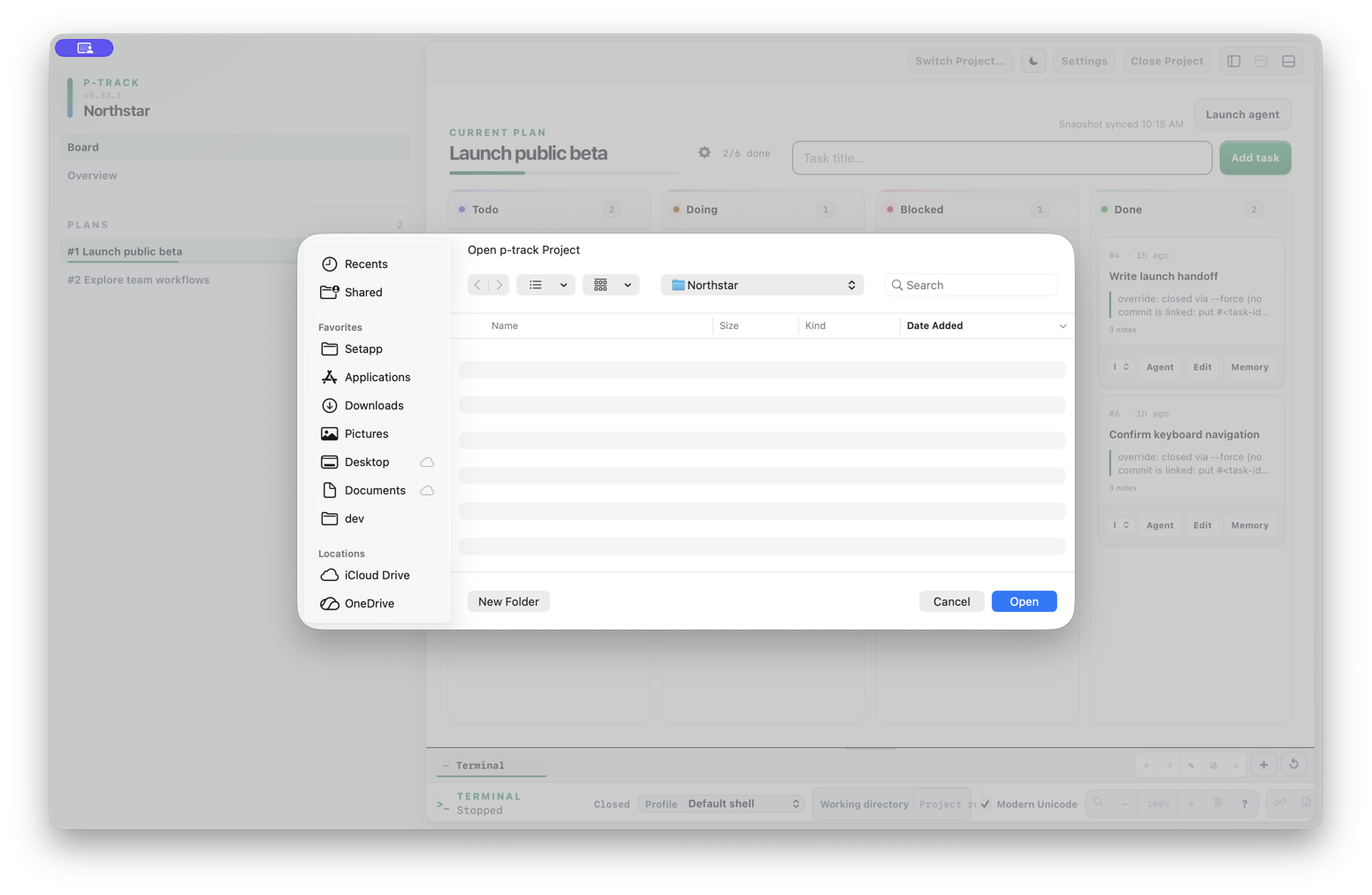
When no project is open, the landing page uses the workspace for global work totals, recent projects, and recent record updates. Use Open folder… to choose a directory containing a p-track project, or Initialize Project to start tracking a new one. The landing header keeps Settings and the online Help Center within reach. Switch between Cards and List to browse projects; selecting a project shows its recent work and an Open action beside its title. Once a project opens, the sidebar returns with the project name, its plans, and the three primary views.
Totals use the latest synced project summaries. Coverage and freshness appear below the counts; projects without a summary are unknown rather than zero. Use Refresh summaries to read the latest work from registered projects. Unavailable projects keep their previous summaries, and the result reports how many refreshed or were skipped. This action updates summary caches without changing project records or local-mode settings. Running ptrack sync from a normal terminal also refreshes that project’s summary. Recent record updates show current status and last-update dates, not a completion history.
Use Open another project… to choose a project folder without first returning to the Projects screen. Use Back to all projects to leave the current project and return to the chooser, where recently opened projects are listed. The application menu carries the same two actions as Switch Project… and Close Project.
Active resources require confirmation. Switching or closing prompts before leaving when the project has active terminal sessions, agent runs, or pending resource admissions. Review the counts before continuing. The confirmation is tied to the observed project state, expires after one minute, and becomes invalid if that state changes.
Navigate the workspace
The sidebar provides the project views and plan list. Choose:
- Board to add tasks, move work through statuses, open task details, launch agents, and use the terminal dock.
- Overview to read project memory, progress, repository information, and agent coordination signals.
- Issues to review full reports, edit evidence, and explicitly schedule or link issues to plan work.
The plan list pins the current plan above the other rows and shows each plan's ID, title, completed/total task counter, and progress; hover a row for its full title. Selecting a row makes that plan current, for the CLI as well, and loads its Board snapshot. When every task in the current plan is done, its card offers All N tasks done · Close plan…. The sidebar can be hidden or resized; the Board and terminal panels have independent visibility controls while Board is selected.
Use + in the Plans header to create a plan, then add tasks on its Board. The filter icon reveals title/number search and status filters for the loaded plans; Clear filters restores the list. Copy context on the Board or a task copies references you can paste into an agent.
The terminal dock stays in place across Overview, Board, and Issues, so switching views does not move the layout or close its sessions. Cmd+J or Ctrl+J toggles it.
Project history on the Overview draws every commit git can report across the life of the repository, with tags marked as releases. This is a longer record than the commits p-track stores, which begin only when ptrack hook install was run. It is read once per project and re-read when HEAD moves.
Use the Board
The Board groups the selected plan's tasks into Todo, Doing, Blocked, and Done lanes. Its header shows plan progress, provides an add-task field, and can launch an installed agent for the selected plan. When the final task reaches Done, p-track prompts once to close the plan instead of leaving completion as an unnoticed Done-only lane. If you are typing in a field or the terminal, or the window is in the background, the prompt waits as a small closeout banner with Review plan closeout and Dismiss, so a keystroke meant for the terminal never closes the plan. Otherwise the closeout dialog opens with focus on Not now. Dismissing the prompt leaves the plan open, and putting the plan on hold suppresses it until resume. A plan closed too early can be reopened with Reopen plan from its menu in the sidebar or the Board header.
Click anywhere on a card, or focus it and press Enter or Space, to open its task drawer. Double-click a card to rename it. The card's ⋯ menu (also on right-click) offers Open details, Move to each other status, Launch agent, Copy context, Edit, and Add note. Card markers for holds, claims, and dependencies explain themselves on hover. Empty lanes collapse to narrow rails that stay drop targets and can be expanded again.
A task or plan put on hold from the CLI (ptrack task hold, ptrack plan hold) keeps its lane and gains an On hold badge on its card, or a pause marker on its plan row in the sidebar; the hold reason is the tooltip. Held cards can still be moved.
Dependencies recorded from the CLI (ptrack task dep add, ptrack plan dep add) surface the same way: a task waiting on open dependencies keeps its lane and gains a ⛓ Waiting badge on its card, with the blocking IDs as the tooltip, and a plan waiting on another plan shows a ⛓ marker on its sidebar row. The badge clears on its own once every dependency target is done.
Move a task by choosing Move to a status from its ⋯ menu, changing the status in its task drawer, or dragging the card to another lane. Moving a card to Done does not require a closeout summary or linked commit the way ptrack task done does; when either is missing, p-track records an override note on the task, such as override: closed from desktop without evidence (no linked commit), in the same write as the status change. p-track checks the current task and linked-resource state before applying the move. If active resources are linked to that task, Desktop asks for one explicit confirmation and revalidates the state before changing only the task status. Canceling leaves the Board unchanged; a stale confirmation is rejected and the Board refreshes.
Inspect a task and write memory back
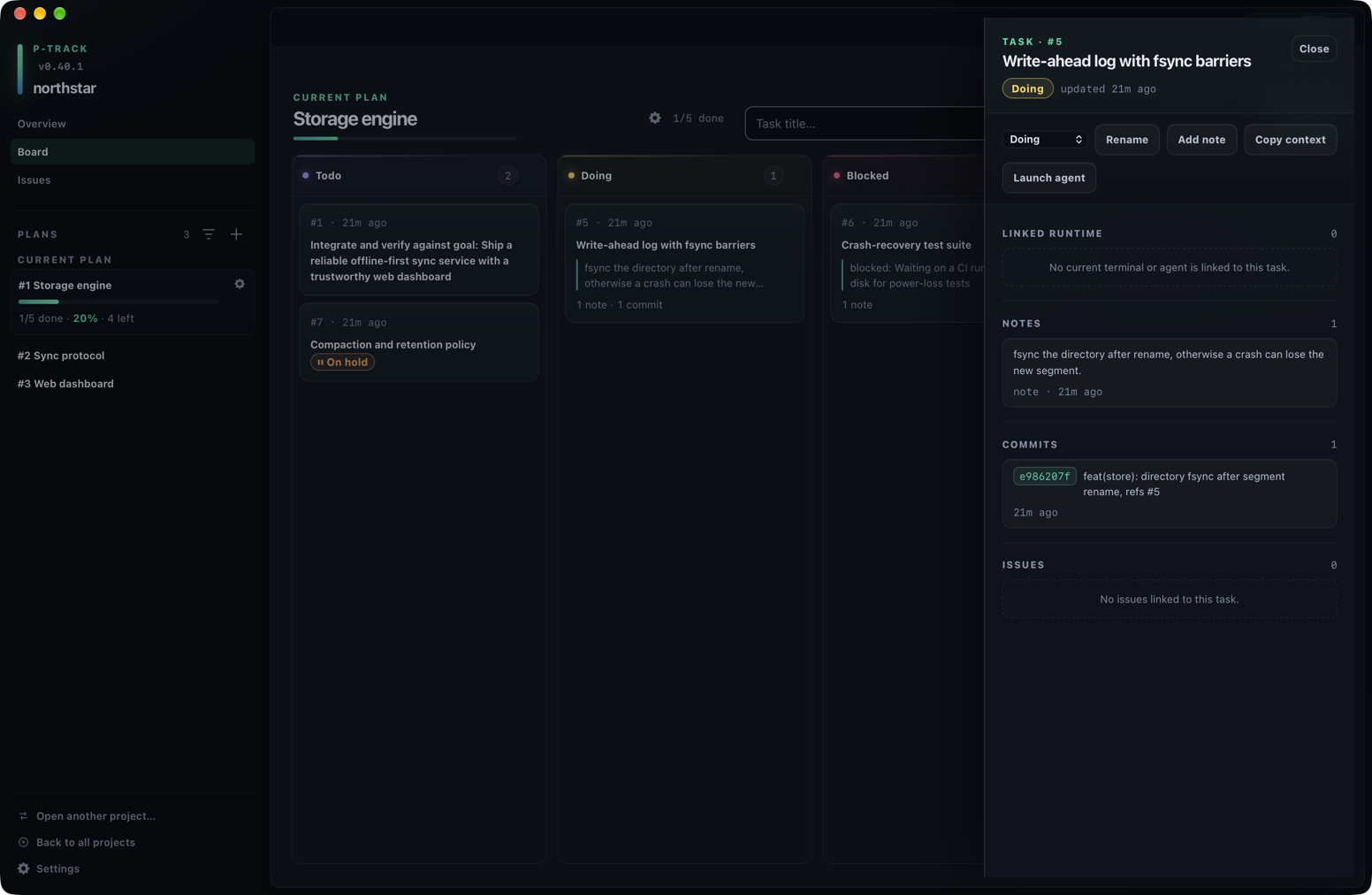
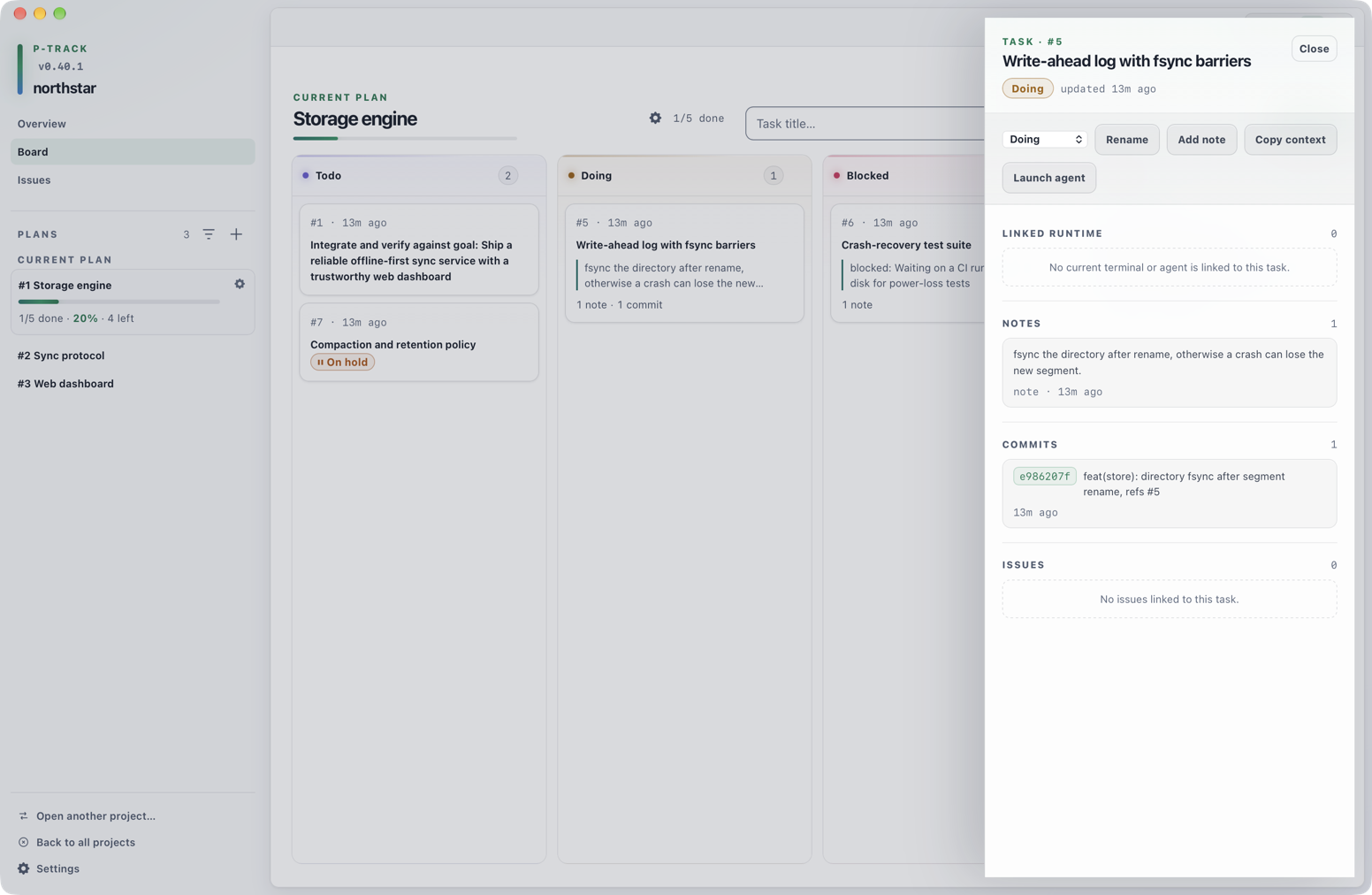
The task drawer identifies the task, its status, and its last update. From the drawer you can change status, rename the task, add a note, copy its context, or launch an installed agent for that task. Its action row reflows at compact widths while preserving the full status label.
The drawer's detail sections show:
- Linked runtime — current or historical terminal and agent relationships for the task.
- Notes — durable memory attached to the task.
- Commits — commits associated with the task.
- Issues — linked issues and their severity; select a report to open its full detail.
- Issues inbox — choose Issues in the sidebar or press Cmd/Ctrl+3. Filter open, closed, scheduled, or unscheduled reports and page through older records. Open a report to edit its evidence, severity, or status. Schedule creates one task in the selected plan; link/relink and unlink change only the association. Move linked task carries its status, evidence, and all linked issues to the destination plan, subject to plan claims. Open linked task selects its plan and opens the task drawer. Closing an issue and completing a task are independent actions.
Add note adds a note to the task. A terminal tab can also be linked to the selected plan or one of its tasks from the Board dock. Its Write memory back flow accepts a decision, blocker, handoff, or project rolling summary, then previews the authoritative destination before writing. Replacing the project rolling summary requires an additional explicit confirmation.
Read the Overview
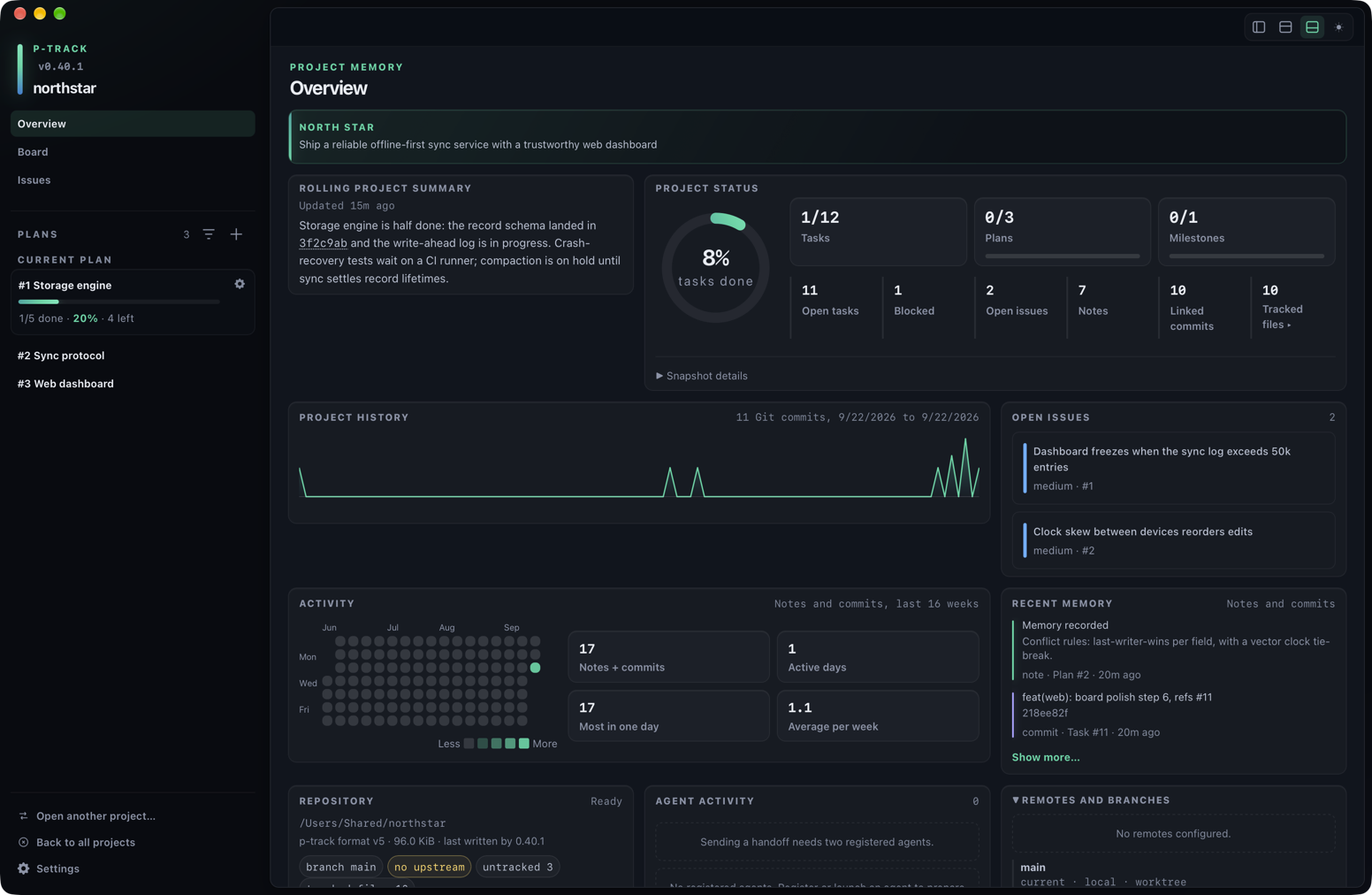
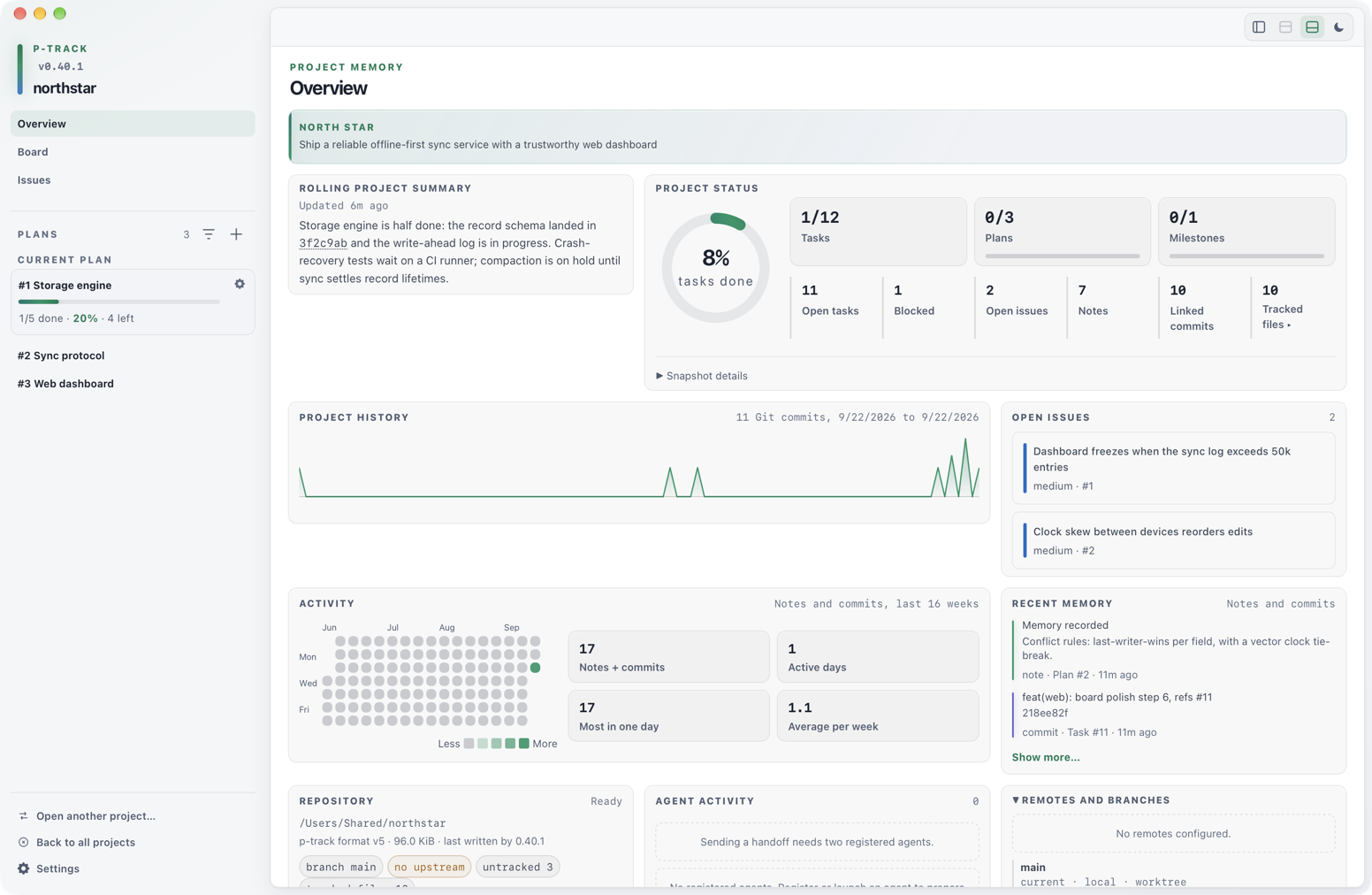
Overview brings project memory and bounded repository observations together without changing the Board selection. It includes:
Project status groups task, plan, and milestone completion above the supporting counts. Expand Snapshot details to inspect loaded/total counts. The activity calendar includes month and weekday labels, an intensity legend, and totals for the displayed 16 weeks.
- the project goal, the rolling project summary with how long ago it was written (for summaries saved by this release or later), project status, and plan progress;
- a 16-week notes-and-commits activity view, open issues, and recent memory;
- the project root, storage status, and repository summary;
- agent activity, handoff and workflow proposals, drift signals, and notifications;
- expandable remotes and branches, recent commits, blockers, and project notes.
Project status counts Linked commits, the commits p-track has linked to tasks, while Project history counts every Git commit in the repository. Repository chips show the branch and upstream plus only the counters that are not zero; a clean tree reads Clean. Full commit SHAs in the summary are shortened to seven characters, with the full value on hover. Drift and incomplete-comparison notices are informational rather than errors. Counts and bounds shown in this view describe the snapshot currently loaded. Agent handoffs and workflow approvals shown here are proposals; the interface labels them separately from task changes and command execution.
Open Settings
Settings is an application dialog, not a project view. Open it with Cmd+, or Ctrl+,, from p-track ▸ Settings… in the macOS app menu (Project ▸ Settings… on Windows and Linux), or with the Settings button at the bottom of the sidebar or on the Projects screen. It opens with or without a project open and holds no project-scoped state. Its six sections are:
- Startup — whether p-track reopens the last project on launch. Off by default.
- Appearance — color theme, density, and reduced motion.
- Terminal — default profile, font family, font size, Unicode mode, scrollback, and renderer for terminals you open next. Unicode mode also applies to panes that are already open.
- Notifications — three independent opt-ins for handoff arrivals, run failures or run-scoped drift, and explicit run completion. All are off by default.
- Updates — the automatic-check opt-in; check, download, and install stay in About & Updates.
- Data & Diagnostics — read-only data paths grouped into Global and This project, backup and migration records, recovery status, and the two reset actions.
Changes are saved as you make them and a status line reports each save. Reset all settings… in the dialog footer returns every section, not just the one on screen, to its defaults after a confirmation. If a stored settings record cannot be read, Settings says so and keeps showing defaults instead of overwriting it.
OS notifications appear only while every p-track window is in the background. Enabling a category is the first time p-track asks for OS notification permission; denial leaves all categories off. Notifications contain only a shortened agent ID and available plan or task IDs. They never contain task text, paths, terminal output, handoff previews, provider content, or credentials. Retained events are baselined at startup, when an opt-in is enabled, and after a project switch, so they are not replayed.
Reopen where you left off
Desktop remembers how its window and workspace were arranged, and can optionally reopen the project you were last working in.
Reopen the last project
Settings ▸ Startup holds one checkbox, Reopen the last project when p-track starts, which is off by default. With it on, p-track reopens the last project it recorded, but only when that project is still present and resolves cleanly. A project that has moved is never opened automatically: p-track lands on the Projects screen instead, with that recent entry marked Preselected so you can see which project it was, and you confirm the new location yourself with Locate… on it. A project path given on the command line always wins over this setting, and closing a project clears the recorded entry.
Window position and size
The window's position, size, and maximized state are restored on the next launch. They are stored in logical coordinates, so a display with a different scale factor restores the same window rather than a shrunken or oversized one. If the stored position no longer lands on any connected display, p-track recenters the window on the primary display at its stored size. Fullscreen is deliberately not restored: a window that was quit in fullscreen reopens windowed. The window stays hidden until its restored geometry is applied, so there is no visible jump at launch.
Sidebar, panels, and view
The controls at the top right show or hide the project sidebar, the Board, and the terminal panel, then switch the color theme. A lit control means its panel is showing. The Board control stays dimmed until a terminal is open, because the Board fills the space when there is nothing else to show.
Layout is remembered too: sidebar width and whether it is hidden, Board and terminal panel visibility, and—per project—the selected view, the selected plan, and which Board lanes you folded. The per-project part covers your 32 most recently used projects. A remembered plan is a hint only; if it no longer exists or belongs to another project, Desktop falls back to the active plan. The task drawer selection is deliberately not remembered, so reopening a project lands on the Board rather than on a task you may have already finished.
Reset window layout or application state
Settings ▸ Data & Diagnostics holds two reset actions. Both ask for confirmation first, and neither appears in the native menus.
- Reset Window Layout clears the stored window and layout state and applies the defaults immediately. Nothing else changes.
- Reset Application State clears everything the application stores about itself — your settings, the automatic update-check opt-in, the startup opt-in and last project, window and layout state, and saved terminal workspaces. The app returns to its default state without a restart.
Plans, tasks, notes, and the list of recent projects are not touched by either reset.
Workspace at a glance
| Place | Use it for | Important boundary |
|---|---|---|
| Project chooser | Open a recent or different project. | Leaving active resources requires a fresh confirmation. |
| Plan list | Choose the current plan the Board shows; its context menu renames, holds, closes, reopens, deletes, moves, or copies the plan. | Selection sets your current plan, like ptrack plan use. |
| Board | Add, inspect, rename, move, and link task work. | Closing a card without evidence records an override note. |
| Task drawer | Review status, runtime, notes, commits, and issues. | Memory writeback previews its destination. |
| Overview | Read project memory, progress, repository, and coordination signals. | Snapshot bounds remain visible. |
| Settings dialog | Set startup, appearance, terminal defaults, update checks, and read diagnostics. | Application-wide; it stores no project state. |
| Reset actions | Restore default window layout, or clear all application state. | Plans, tasks, notes, and Recent projects are not touched. |